Reviewing Applications
HireNow Portal > Recruitment Campaigns > (select a campaign) > (Click an Applicant on main table)
Description
As a recruiter of HireNow, I want to be able to view and review campaign applications and applicant's submissions
Applicable User Roles
List of roles that have access or can use this feature.
Recruiter
How To
Viewing Applications
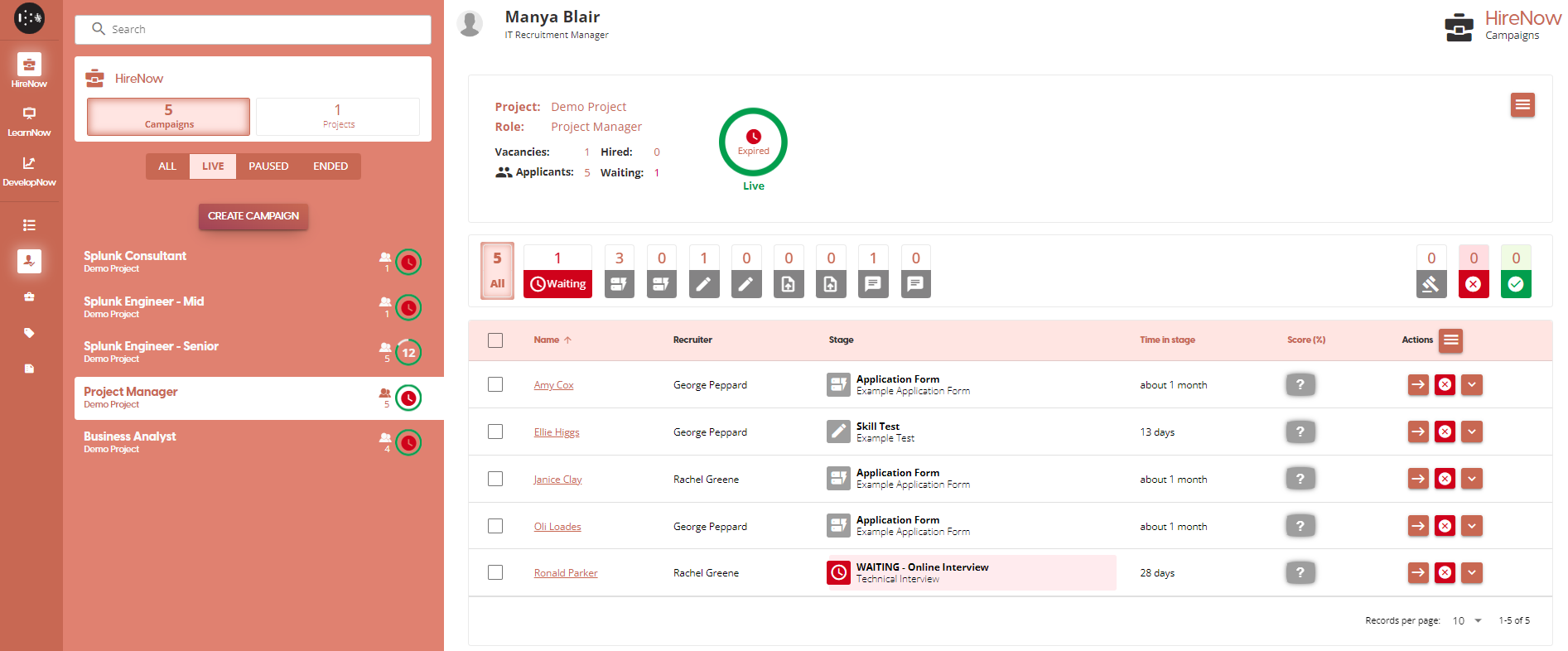
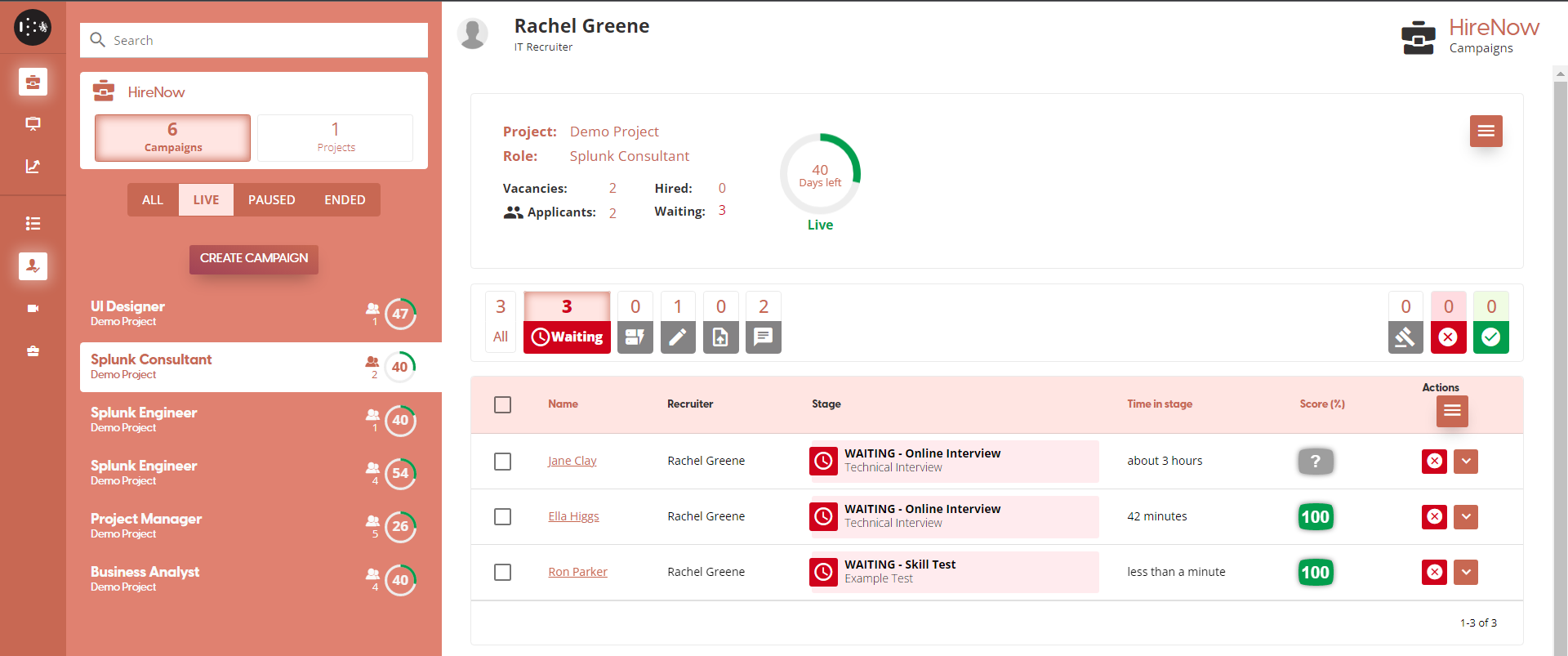
When you are on the campaigns page, the page will display an applications table for that campaign. To view the progress of any of the applications, click on the applicants name to bring up the Application Steps window.
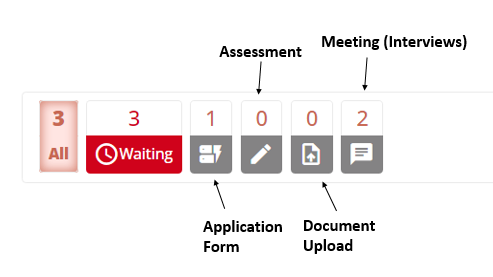
You can filter the table to only show the candidates on each individual step. The image shows a guide to what each icon represents, and when you hover over the filters yourself you will see the step name instead.
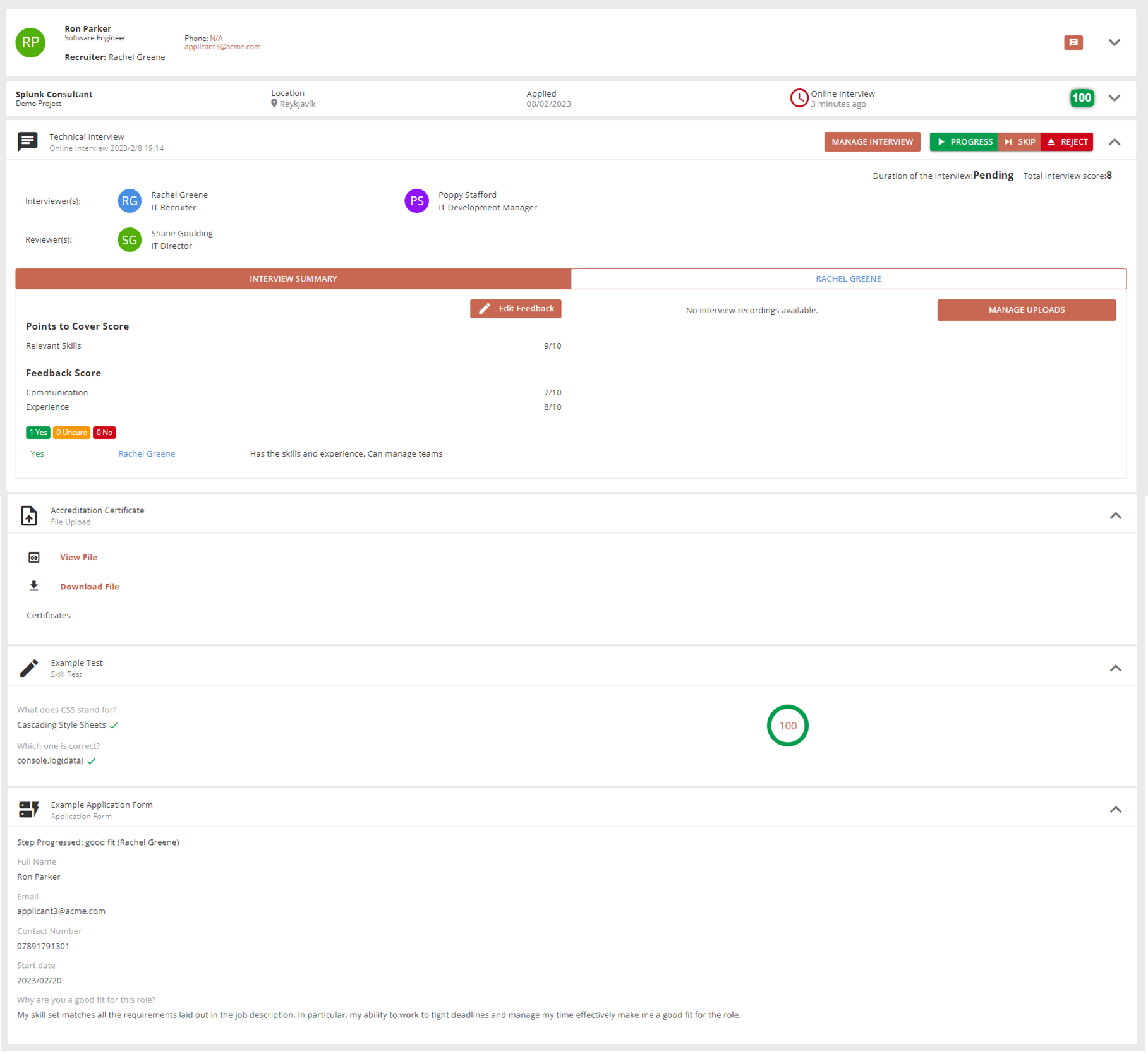
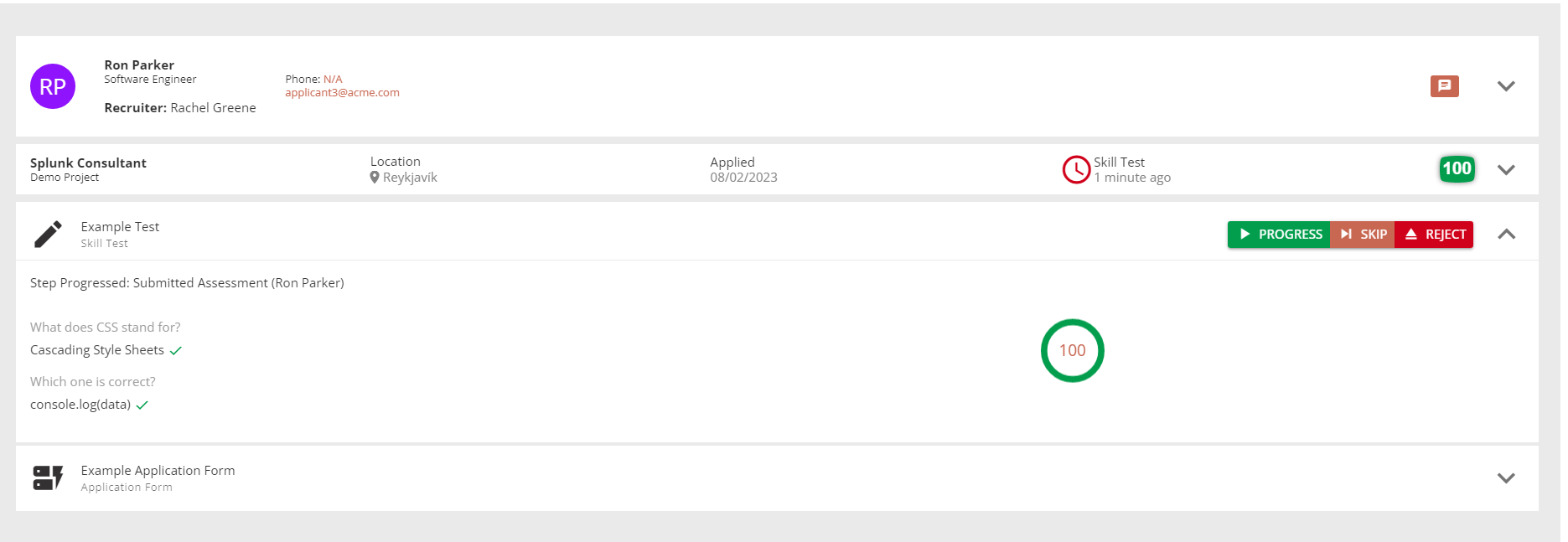
If there is data available for a step, you can click on the step to expand the section and view any submissions, notes or files associated with the step.
Progress, Skip or Reject applications
In the Application Steps window, you have the ability to either Progress, Skip or Reject the application at any step. These buttons are present on each step of the application process.

Reject :
Reject the candidate from the current campaign. The application will be stopped at the current step and the applicant will no longer be able to proceed. When rejecting an application, you must select a reason for rejection from the dropdown list. If none of the options are applicable, you can select the 'Other' option, which will provide a text box to input a custom reason.
Pressing the 'Withdraw Candidate' button on the applications table starts the same process, and will present you with the same list of options for rejection.
Applicants will receive rejection email when rejected, informing them that the application has been withdrawn.
Skip :
Skip the current application step. This can be done at any time during the application, and will move the application to the next step of the campaign. There is an optional text box in the pop-up to enter a reason for skipping the step.
⚠️ You cannot manually revert skipping a step. If there is a no change on the page after you have clicked the Skip button, wait or refresh the page to see if the request has finished processing. Clicking the skip button again will cause the application to skip two steps. If this happens, you can contact us at support@skillsnow.com
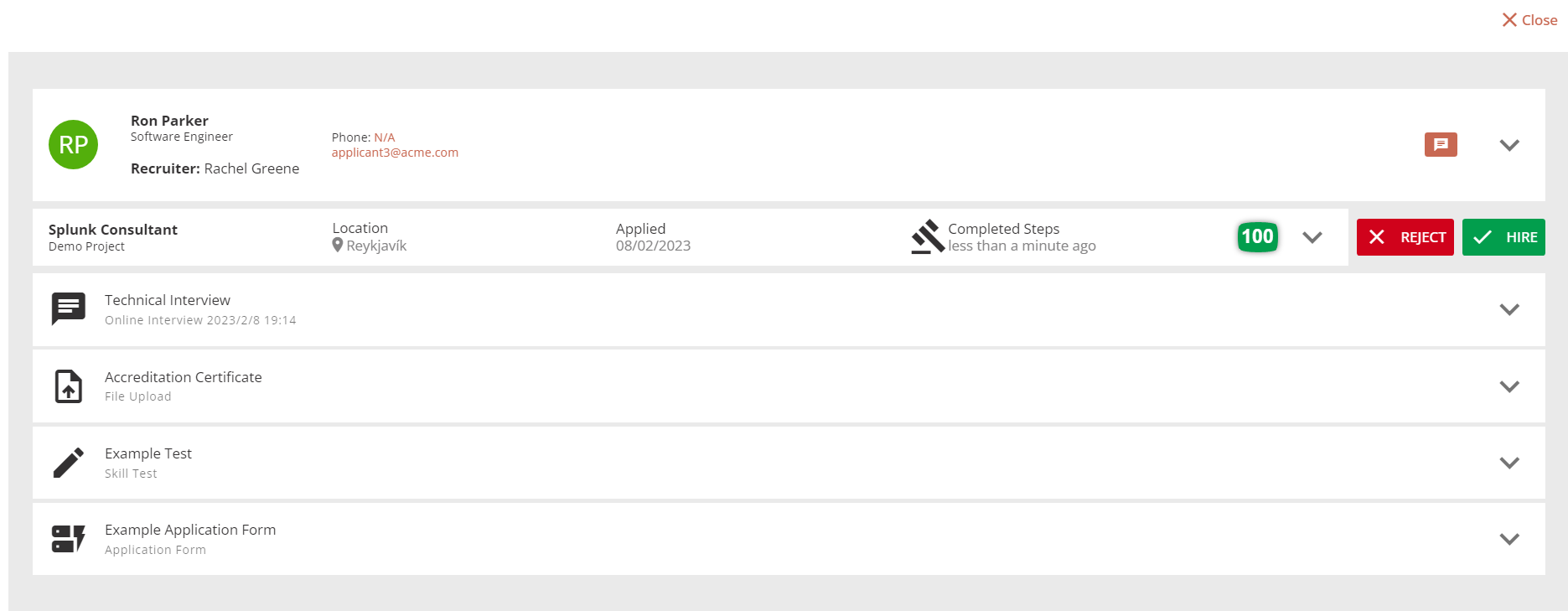
If the candidate is on the final step of the campaign, clicking the Skip button will progress them to the Completed Steps stage, where you have the option to Hire or Reject.
Progress :
Progress the application to the next step. The progress button is contextual, and will only be visible once certain triggers have been met on the step. Examples include completing an interview or the applicant submitting assessment results.
Progressing an applicant to the next step of the campaign will send an email to let them know the next step.
Applications 'Waiting for Recruiter'
Some application stages require manual intervention before an applicant can continue. These applications are shown as “Waiting” and can be filtered for in the applications table. Click on the 'Waiting' tab filter to show all applications which require manual intervention to proceed.
Reviewing Assessments
When an assessment is completed by the applicant, it is scored automatically. A recruiter must review the applicant’s answers before deciding to progress the application.
Decision to Hire
The final step in the application process is the Decision to Hire. An average score for all assessments in the application is shown and the recruiter is able to review all tasks submitted by the applicant again.
The recruiter must then select either “REJECT“ or “HIRE”. If reject is selected the applicant is automatically sent an email.
Note: An automated email is NOT sent on the decision to hire; the applicant must be contacted manually.